



Shortcodes and Translation: A WordPress Journey
In WordPress Block Themes (also known as Block Themes or Full Site Editing Themes), the traditional method of inserting PHP code directly into template files (such as functions.php, header.php, etc.) cannot (rather difficult) be used in the same way as in WordPress Classic Themes.
Because, the Block Theme uses a combination of block patterns, templates, and template sections, along with the Site Editor for customization. However, we can still add custom PHP code in a few different ways, one of which is by using “shortcodes”.
Words Preparation: Getting Ready
Let’s set the stage: WordPress Block Themes don’t rely on classic PHP templates, meaning our approach needs to match this more modular system. To create custom translations in Polylang, preparation is key. Before diving into code, it’s helpful to clarify what terms or phrases you’ll need to translate. Jot them down and plan their usage across the site.
Installing the Polylang Plugin
First things first—if Polylang isn’t yet a part of your WordPress toolkit, now’s the time. Head over to your WordPress admin dashboard:
1 2 3 4 | Navigate to <strong>Plugins > Add New</strong>. Search for <strong>“Polylang”</strong> in the search bar. Hit <strong>Install Now</strong> and then <strong>Activate</strong>. Follow the setup wizard to configure your primary and additional languages. |
Once installed, we’re ready to dig into custom word registrations.
Coding for Custom Words in functions.php
Here’s where the magic begins. By adding a few lines of code to your Block Theme’s `functions.php` file, you’ll register custom words and enable them as shortcodes. Let’s get started:
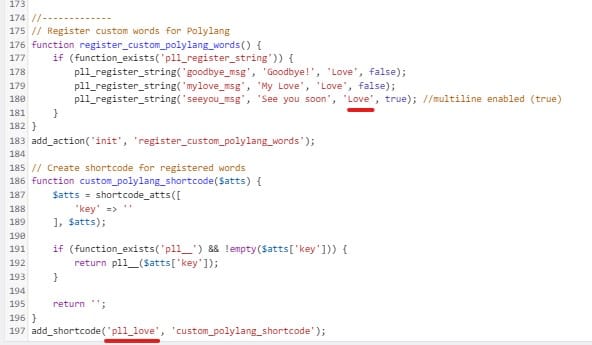
1 2 3 4 5 6 7 8 9 | // Register custom words for Polylang function register_custom_polylang_words() { if (function_exists(‘pll_register_string’)) { pll_register_string(‘goodbye_msg’, ‘Goodbye!’); pll_register_string(‘mylove_msg’, ‘My Love’); pll_register_string(‘seeyou_msg’, ‘See you soon’); } } add_action(‘init’, ‘register_custom_polylang_words’); |
Create shortcode functions
1 2 3 4 5 6 7 8 9 10 11 | // Create shortcode for registered words function custom_polylang_shortcode($atts) { $atts = shortcode_atts([ ‘key’ => ” ], $atts); if (function_exists(‘pll__’) && !empty($atts[‘key’])) { return pll__($atts[‘key’]); } return ”; } add_shortcode(‘pll_love’, ‘custom_polylang_shortcode’); |
Add this snippet to your `functions.php` file to ensure Polylang registers your words properly and converts them into usable shortcodes.
Verifying Registration in Polylang
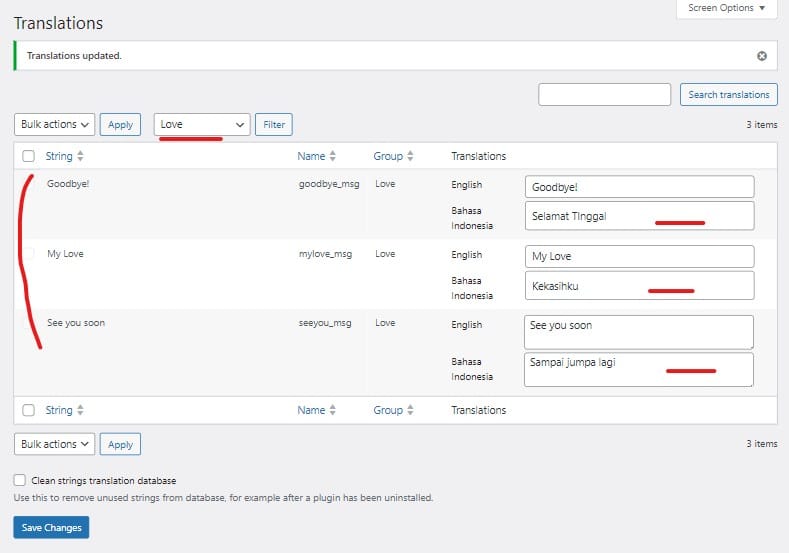
With the code added, let’s check if our custom words are correctly registered:
1 2 3 | Go to Languages > Translations in the WordPress admin. Search for the words “Welcome,” “Author,” and “Contact Us” in the list. Translate these words into your site’s additional languages. |
Once registered and translated, these words are ready for dynamic usage via shortcodes.
Using Shortcodes in Block Themes
Finally, let’s see how to integrate the shortcodes within a WordPress Block Theme:
1 2 3 | Open the Site Editor or directly edit your templates via Appearance > Editor. Add a block (e.g., Paragraph, Heading) to the desired location. Use the shortcode. |
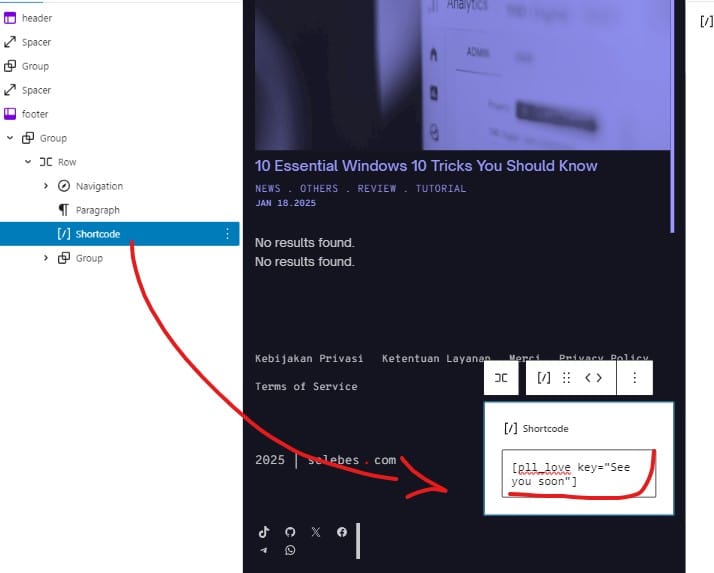
The shortcode format like so:
[pll_love key=“See you soon”]
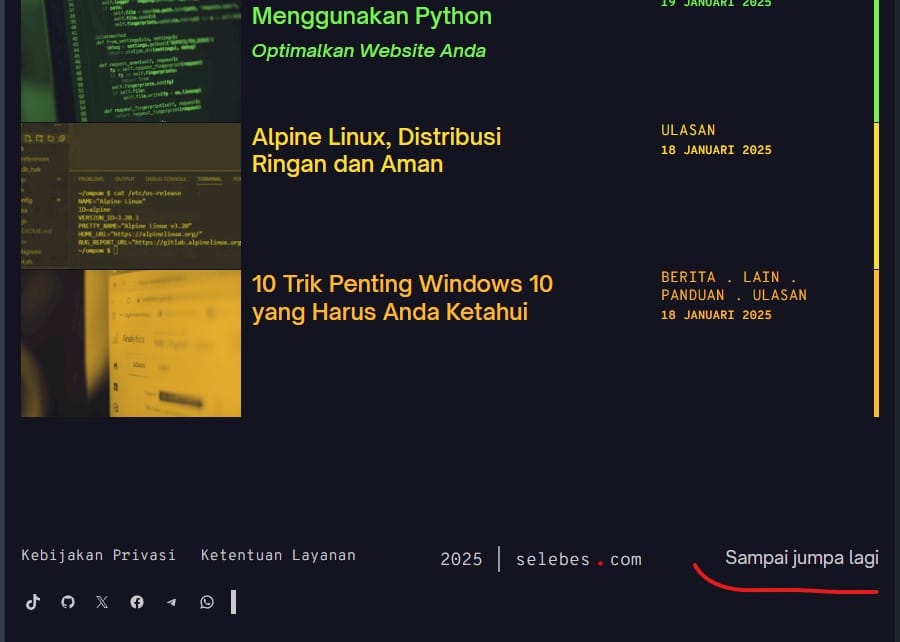
Save your changes, and voila! Your translated text will appear dynamically based on the selected language.
Leave a Reply